Monday, May 27, 2013

Custom field type with visual studio 2010


Steps to create Custom field type with visual studio 2010

1) Create new project select "Empty SharePoint project"

2) Give project name "CustomFieldType"

3) Select deploy solution as a farm solution.

4) Select project and click on add "SharePoint mapped folder" go to template > xml


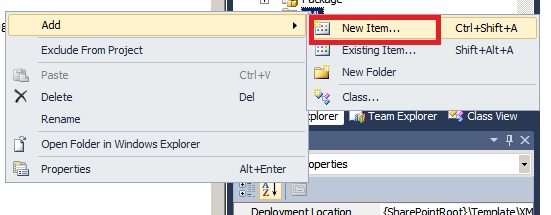
5) Select XML folder right click add > new item


6) Go to Data tab and select XML file. Give file name" fldtypes_CustomFieldTraining.xml " ,Be sure the xml file name should has to start with fldtypes only. Otherwise this will not work.


7) open the fldtypes_CustomFieldTraining.xml file and enter the below node.

<!--
This file ensures that your SPField class is displayed in the list of available field types -->
<
FieldTypes>
<FieldType>  
<Field Name="TypeName">TrainingCode</Field> 
<Field Name="ParentType">Text</Field>  
<Field Name="TypeDisplayName">Training Code</Field>  
<Field Name="TypeShortDescription">Training Code</Field>  
<Field Name="UserCreatable">TRUE</Field>  
<Field Name="FieldTypeClass">CustomFieldType.Training_CustomFieldType, $SharePoint.Project.AssemblyFullName$</Field>
</FieldType>
</FieldTypes>

8) Enter a class file and give the name : Training_CustomFieldType.cs
Please check the name correctly because this is used in xml file as FieldTypeClass.


9) put the below lines in the CS file.

using System;
using System.Collections.Generic;
using System.Linq;using System.Text;
using Microsoft.SharePoint;
namespace CustomFieldType
{

/// <summary>/// When a user creates a new column in a List or Content Type, they see a list of /// Field Types, such as "Single Line of Text" and "Date and Time". By creating your/// own Field Type, you can extend this list. You can also include your own logic in /// the new Field Type, such as custom code to set the default value or validate user/// input. This code example shows how to create a custom Field Type/// </summary>/// <remarks>/// To create a custom field type, create an empty SharePoint project and then add a /// new class. The new class should inherit from a SPField class. In this case, the /// field stores strings, so we inherit from SPFieldText. You must also create a /// fldtypes*.xml file and deploy it to TEMPLATES\XML in the 14 hive. class Training_CustomFieldType:SPFieldText{#region Constructors
//You must create both these constructors, passing the parameters to the base classpublic Training_CustomFieldType(SPFieldCollection fields, string fName):
base(fields, fName){
}

public Training_CustomFieldType(SPFieldCollection fields, string tName, string dName):
base(fields, tName, dName){
}
#endregion//Override this property to formulate a default value. public override string DefaultValue{

get{return "CP0001";}
}

//Override this method to validate string data.public override string GetValidatedString(object value){

//Check that it starts with CP for "Training Code"if (!value.ToString().StartsWith("MS")){

//When you throw an SPFieldValidationException users see red text in the UIthrow new SPFieldValidationException("Training code must start with 'MS'");}

//Check that it's 6 characters longif (value.ToString().Length != 6){

throw new SPFieldValidationException("Training code must be 6 characters long");}

//Always convert to uppercase before writing to Content DB.return value.ToString().ToUpper();}
}
}


10) Deploy the solution and check the custom field while creating column.


http://msdn.microsoft.com/en-us/library/vstudio/ee361616.aspx

Wednesday, May 1, 2013

Enabling SharePoint service URL

http://win-t6obqappc5d:9999/_admin/adminconfigservices.aspx

The url (site url /_admin/adminconfigservices.aspx ) will open the below page ,
Where you can select service to be enabled.

Tuesday, April 23, 2013

changing the sharepoint 2010 site logo doesn't reflact for webpart pages

This has been seen that changing the sharepoint 2010 site logo doesn't reflact for webpart pages.

in that case we modify the master page as below

<SharePoint:SPLinkButton runat="server" NavigateUrl="~site/" id="onetidProjectPropertyTitleGraphic">
           <SharePoint:SiteLogoImage name="onetidHeadbnnr0" id="onetidHeadbnnr2" LogoImageUrl="/_layouts/images/siteIcon.png" runat="server"/>
          
          </SharePoint:SPLinkButton>


changed one with below code in master page

<SharePoint:SPLinkButton runat="server" NavigateUrl="~site/" id="onetidProjectPropertyTitleGraphic">
           <SharePoint:SiteLogoImage name="onetidHeadbnnr1" id="onetidHeadbnnr2" LogoImageUrl="/_layouts/images/siteIcon.png" runat="server"/>
          
          </SharePoint:SPLinkButton>

Wednesday, April 17, 2013

Remote BLOB Storage (RBS) in a Microsoft SharePoint Foundation 2010 environment

By default, these BLOBs, also named unstructured data, are stored inline in the SharePoint content database together with the metadata, or structured data. Because BLOBs can be very large, it can be helpful to move BLOB data out of the SQL Server database

RBS can provide performance gains. However, if users will frequently revise the content, using RBS will decrease performance. This is because extensive versioning will cause significant growth in both the metadata in the content database and the size of the BLOB store

RBS was designed to move the storage of BLOBs from databases on database servers to directories on commodity storage solutions. Therefore, under the specific environments that RBS was intended to be used in, you can experience performance or cost benefits. By using lower-priced storage instead of more expensive storage on a databases server, you can save on costs. RBS saves storage resources when there are fewer large BLOBs. When there are many smaller files, there is no benefit.

Most optimal use of RBS

Because RBS is a solution created for a specific set of conditions, there is an optimal use of RBS in which the benefits outweigh the costs. The optimal environment for using RBS is an environment where the following is true:
  • You want to store fewer large BLOBs (256 KB or larger) for read-intensive or read-only access.
  • The resources on the computer that is running SQL Server might become a performance bottleneck.
  • The expense of high-cost drive space is greater than the expense of increased IT operations complexity that might be introduced by using RBS.
  • RBS is typically recommended in the case where the content databases are 4 gigabytes (GB) or larger

Least optimal use of RBS

RBS is not a good solution for all environments. The costs will outweigh the benefits most of the time. The least optimal environment for using RBS would be an environment where the following is true:
  • You want to store many small BLOBs (256 KB or less) for write-intensive access.
  • The resources on the computer that is running SQL Server are not a performance bottleneck.
  • The expense of increased IT operations complexity that might be introduced by using RBS is greater than high-cost drive space.

Monday, April 8, 2013

Some Important

  • Keep in mind that although site pages are loaded from a database, web parts and their user interfaces are not. Only the configuration of the web part is stored in the database 

  • Site pages that are loaded from the file system are known as ghosted pages, and when these pages have been customized they are known as unghosted pages. 

  • SharePoint 2003 brought us ghosting/unghosting; SharePoint 2007 scrapped these terms in favor of the more descriptive uncustomized/customized. Now with SharePoint 2010, the terms attached and detached are used to prevent any ambiguity

  • Site pages and application pages is the way they are parsed by the SharePoint platform. Application pages behave like any other ASP.NET page in that they can contain inline server-side code; however, site pages are rendered using the safe mode parser that prevents inline server-side code from executing. 

  • The client object model has three variants:
             1) JavaScript Client Object Model
             2) Silverlight Client Object Model

                          Microsoft.SharePoint.Client.Silverlight.dll
                          Microsoft.SharePoint.Client.Silverlight.Runtime.dll

             3) Managed Client Object Model:
                  This version has been designed for use by .NET-managed applications
                          Microsoft.SharePoint.Client.dll
                          Microsoft.SharePoint.Client.Runtime.dll


Communication from the client-side object to the server-side counterpart is accomplished via a new Windows Communication Foundation (WCF) service called
Client.svc, as the following illustration shows:


SharePoint Unified Logging Service (ULS) logs:


How to write error logs using server side:


try
{
//some code
}
catch (Exception ex)
{
SPDiagnosticsCategory myCat=new SPDiagnosticsCategory("A new category",
TraceSeverity.Monitorable,
EventSeverity.Error);
 

SPDiagnosticsService.Local.WriteEvent(1, myCat,
EventSeverity.Error,
"My custom message",
ex.StackTrace);
}


Log error in javascript: 

http://msdn.microsoft.com/en-us/library/hh803115%28v=office.14%29.aspx

How to Access the List Items

wrong way :

This will increase network traffic to access data from Database each time

SPList masterPages = root.Lists.TryGetList("Master Page Gallery");
if (masterPages != null)
{
foreach (SPListItem fileItem in masterPages.Items)
{
SPFile file = fileItem.File;
Console.WriteLine(file.Name);
}
}


Correct way :

Below Code will store the List Items in the SPListitemCollection.

SPList masterPages = root.Lists.TryGetList("Master Page Gallery");
if (masterPages != null)
{
SPListItemCollection items = masterPages.Items;
foreach (SPListItem fileItem in items)
{
SPFile file = fileItem.File;
Console.WriteLine(file.Name);
}
}

HTML

Script:

JS